Translation Tools on Chromebooks
There are three options for translating: inputting text, speaking and using the camera. Here are directions for using your browser for inputting text and for using the Microsoft Translator App for voice translation and camera.
Inputting Text on Chrome Browser
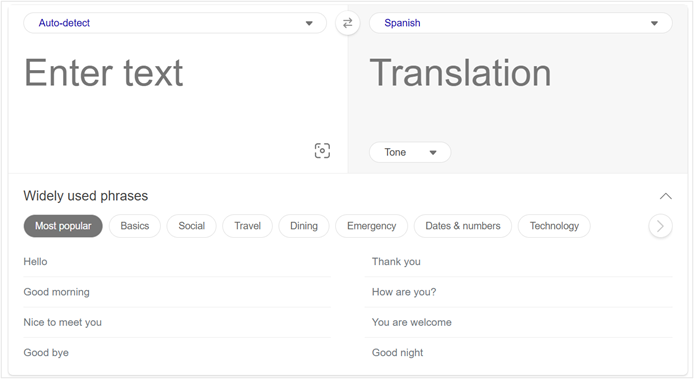
Launch the Google Chrome Browser and go to http://bing.com/translator. Once you start inputting text in the 'Enter Text' box, translator will detect the language you are using. Select the language you want to translate from the drop-down box.
Voice and Picture Translation Using Microsoft Translator App
The Microsoft Translator App has been pushed out to the Google Play Store for all student and staff accounts. Once the app has been downloaded to the account, it will be available on any device for that user.
Step 1: Download the Microsoft Translator App
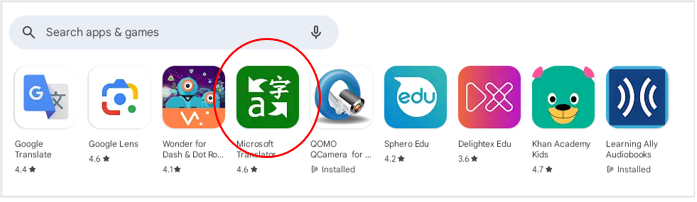
Log into the Chromebook and click on the Google Play icon at the bottom of the screen. Click on the Microsoft Translator icon to start the downloading process. You will see the word "installed" below the icon when the app has been installed on the account. If you are experiencing issues with the Microsoft Translator App, restart your Chromebook. If that does not resolve the problem, put in an Incident IQ help ticket.
Step 2: Open the Microsoft Translator App
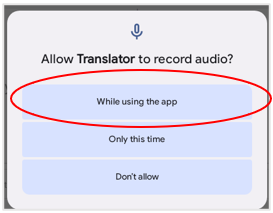
The first time you open Microsoft Translator, you will need to acknowledge that the app works differently on mobile devices and agree to the terms of use. If you want voice translation, select "while using the app", to allow translator to record audio.
Step 3: Try Voice Translator
This feature is useful for one-on-one conversations. Tap on the microphone icon to speak, then tap on the stop button when finished. The translation will appear in real time.
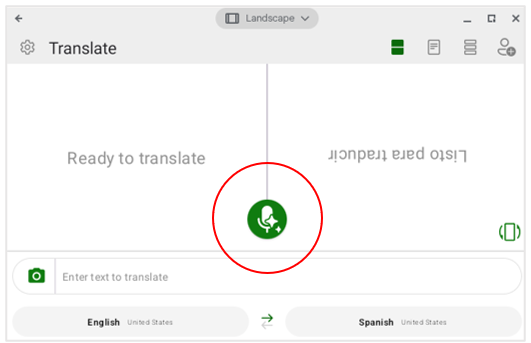
Views: From the icons at the top right, you can choose from:
 Duo translation that assumes the speakers are facing each other.
 Single pane translation has the translation facing the speaker.
 Stacked conversation appears on the screen in live text conversation in a scrolling text window.
  The rotation icon will flip the right pane for speakers speaking side by side.
 Step 4: Try Camera Translation
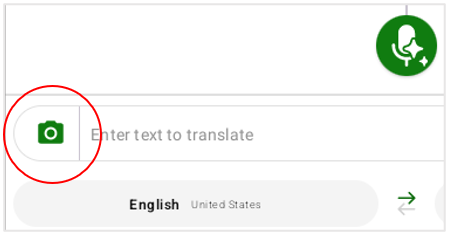
Use your Chromebook's camera to translate text from signs, menus or documents. For example, take a picture of a flashcard and soon the words will be translated right over the original image. Tap the camera icon on your screen in the bottom left corner next to the text box. If prompted, allow the app to access your camera. Point your Chromebook camera at the text you wish to translate and press the camera icon to capture the image. The app will display the translated text over the original image.
Front or Rear Camera: After you launch the camera translation tool, you will notice an icon in the lower right corner. Clicking this icon will allow you to use the front or rear camera, much like "selfie mode" on a smartphone.
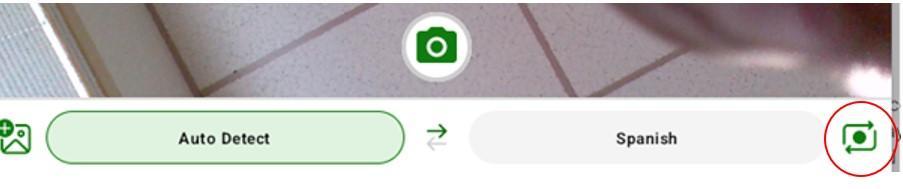
Table Mode: You might find it easier to use Camera Translation while the Chromebook is folded with the screen side facing out in tablet mode. Just be mindful of keeping your hands out of the picture.
Translation Tools on Chromebooks PDFs
The Translation Tools on Chromebook is available NOW! in English in an easy to print PDF.
COMING SOON! Spanish and Chinese PDF version of the Translation Tools on Chromebook.